
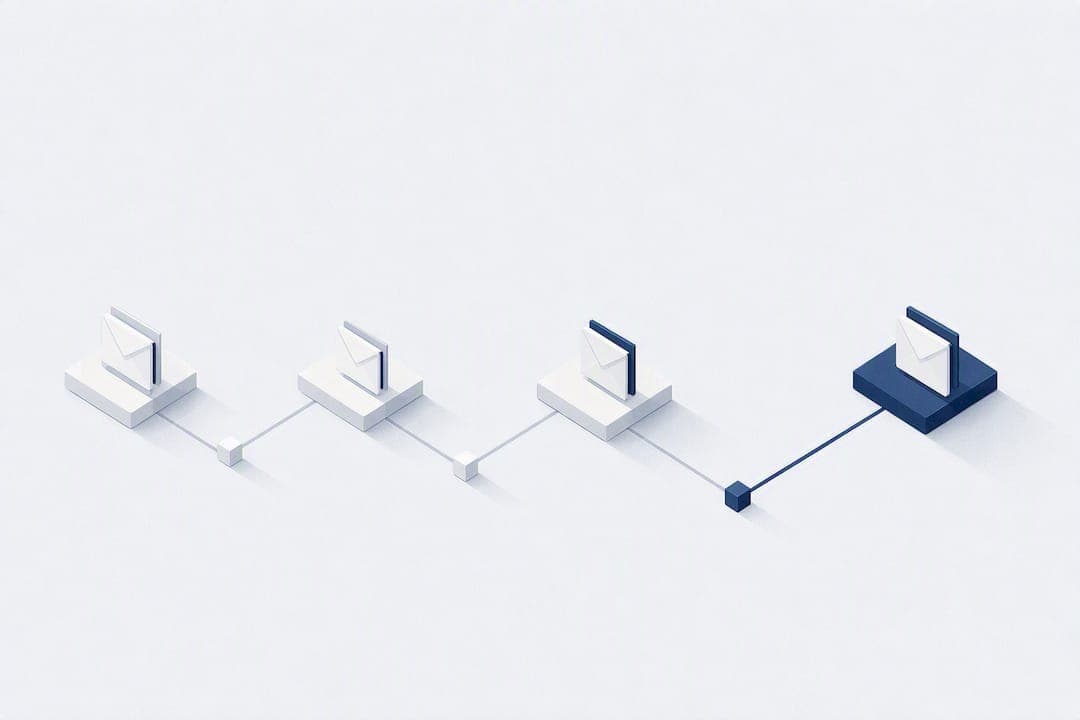
Turn on automated invoice reminders now and start with a conservative cadence, such as reminders around the due date, then about two and four weeks later. Automation cuts the manual chasing that eats up your accounts receivable team's week and gets cash moving faster without a single awkward phone call. Teams that want reminders built into the same workspace as CRM and payments often look at a platform like Gravun instead of stitching tools together.
TL;DR:
- Automated reminders are most effective for repeat customers, B2B clients, and high invoice volumes where manual follow-up is impractical.
- Proper setup requires verifying email domains, payment links, and invoice status tracking before launching reminders to avoid errors.
- Cadence should align with payment terms, escalating tone and communication channels gradually from email to SMS and human outreach if overdue persists.
- Automation stops automatically when payments are confirmed, pending, or disputes are flagged, preventing unnecessary reminders.
- An integrated platform like Gravun streamlines reminders with live invoice data, reducing setup friction and improving collection efficiency.
Table of Contents
- Key Benefits of Automated Invoice Reminders
- How to Set Up Automated Invoice Reminders
- Recommended Cadence and When to Escalate
- Message Templates and Personalization Tokens
- Channels, Integrations, and Technical Checks
- Handling Replies, Disputes, and Exceptions
- How an Integrated Platform Reduces Setup Friction
- Executive Perspective: Keeping Automation Human
- Gravun: Reminders, CRM, and Payments in One Workspace
- Sources
- FAQ
Key Benefits of Automated Invoice Reminders
Automated reminders improve cash flow by shortening the gap between invoice due date and payment, and they free your team from manually tracking who owes what and when to follow up. Consistency is the real win: every customer gets the same professional sequence, with no reminder forgotten because someone was on vacation.
Automation delivers the most value in specific situations:
- Repeat customers with predictable order cycles, where a steady cadence builds expectation without friction
- B2B clients running formal accounts payable processes, since automated tokens like PO numbers match their internal approval workflows
- High invoice volume, where manual follow-up simply does not scale
Track a few simple metrics after launch: days sales outstanding, percentage of invoices paid within terms, and reply rate on first reminders. Those three numbers tell you fast whether your cadence is working.
How to Set Up Automated Invoice Reminders
Before you build a single sequence, confirm three things are in place: a verified sending domain (so reminders don't land in spam), a working payment link or gateway, and an invoice status field your system updates reliably. Skipping this step is the single most common reason automated reminders misfire.
Once those pieces are ready, follow this sequence:
- Pick your trigger. Most systems let you trigger off the due date or off invoice age (days overdue). Aging tends to work better for accounts with rolling terms.
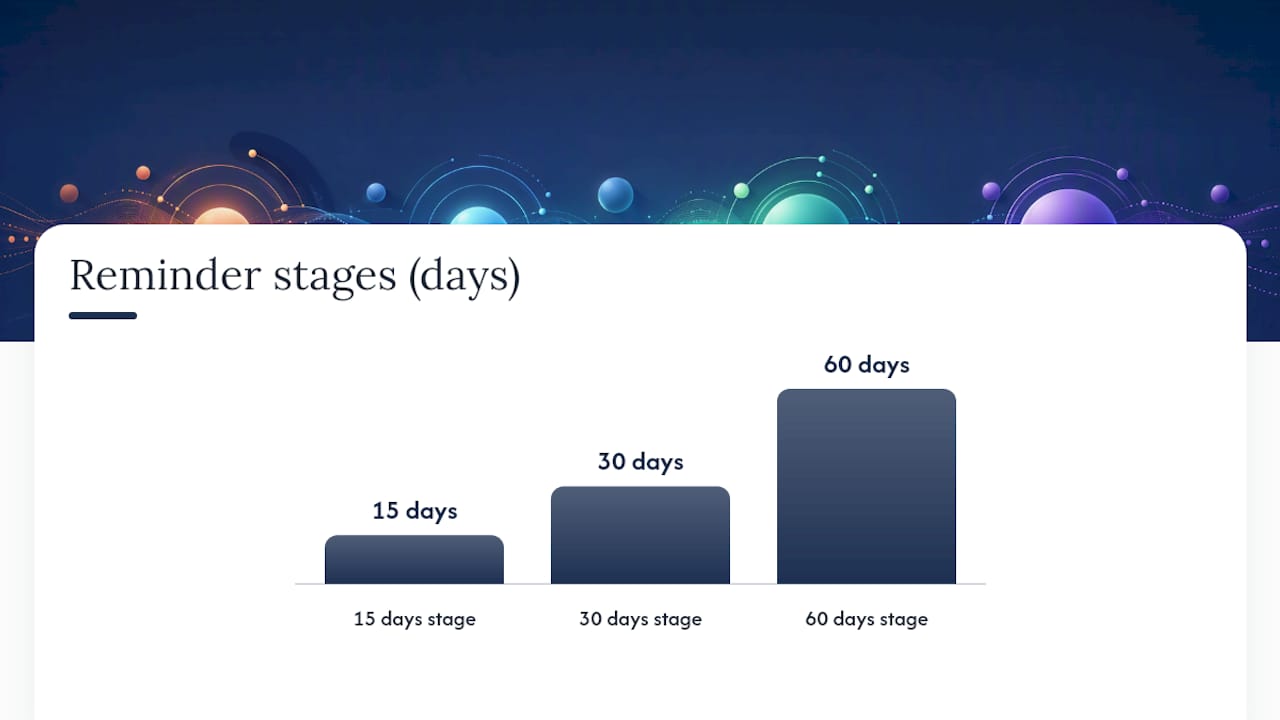
- Create your stages. Set up separate reminders for each point in the cycle, for example due date, 15 days, 30 days, and 60 days.
- Choose recipients and sender. Decide who receives each stage (the AP contact, then a manager for later stages) and which name sends the message.
- Add personalization tokens. Pull in invoice number, amount, and due date automatically rather than typing them by hand.
- Enable the sequence. Turn it on for a small batch first, not your entire customer list.
- Test in a sandbox or with an internal invoice. Confirm formatting, links, and tokens render correctly before customers see them.
Vendor help centers, including Practice Better's setup guide, walk through similar toggles for enabling and editing reminder stages inside account settings, which is a useful reference if your platform's interface feels unfamiliar.
Before rolling out to every customer, run through this validation checklist:
- Send a test reminder to yourself and check every token populates correctly
- Mark a test invoice paid and confirm the scheduled reminder cancels automatically
- Check for duplicate sends across overlapping stages
Pro Tip: Initially deploy automated reminders on smaller invoices for a limited period to identify and correct any issues before wider rollout. Small mistakes are cheap to fix and invisible to your biggest accounts.
Recommended Cadence and When to Escalate
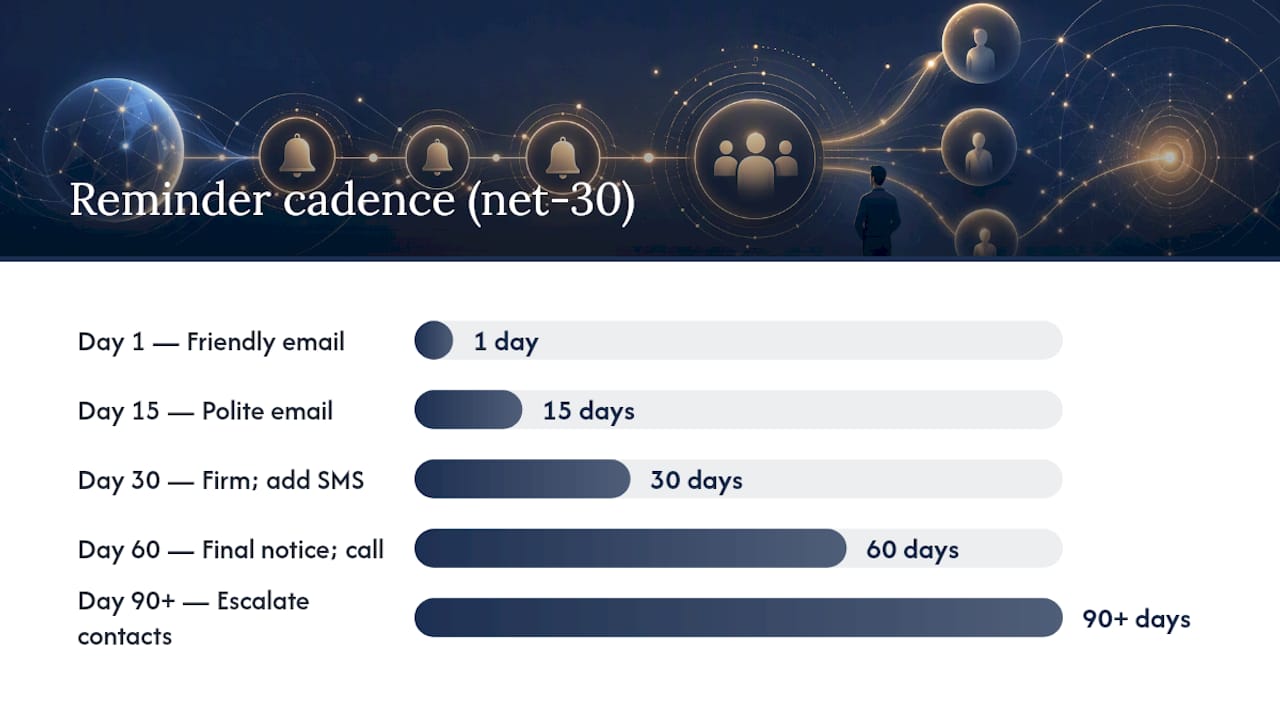
Cadence should match your payment terms, not a one-size template. A workable starting rhythm for net-30 accounts is reminders at 1, 15, 30, 60, and 90-plus days, a pattern that shows up consistently across collections template guidance. Net-15 accounts compress that same logic into tighter windows, while net-60 clients can wait longer before the first nudge feels premature.
Escalation should move in two directions at once:
- Tone escalates first. Friendly at day 1, polite at 15, firm at 30, final notice at 60 or beyond.
- Channel escalates second. Begin reminders with email, then add SMS notifications for invoices that remain unpaid after some overdue period, and bring in a human call for high-value or repeat-late accounts.
- Recipients escalate too. Escalate contacts to a manager or owner on the client side if payment remains outstanding beyond roughly one to one and a half months.
Automation should always stop under three conditions: the invoice shows confirmed payment, the payment is pending processing, or the account has been flagged for a dispute. Stripe's documentation confirms this is standard behavior, canceling scheduled reminders once a payment is detected or under processing, which avoids the embarrassment of dunning someone who already paid.
Message Templates and Personalization Tokens
The tone of reminders should escalate intentionally as invoices age: starting friendly shortly after due date, becoming more polite after a couple of weeks, firmer by around one month, and sending final notices after extended overdue periods. Template research from Rex backs this progression and ties it to measurably better reply and payment rates.
Every automated message needs certain tokens pulled directly from your invoicing data, not typed manually:
- Invoice number
- Amount due
- Days overdue
- PO number (when applicable)
- Payment link
- Sender name
Sample lines by stage:
- Day 1: "Just a friendly note that invoice [Invoice number] for [Amount] is due today."
- Day 15: "Invoice [Invoice number] is now [Days overdue] days past due. Here's your payment link: [Payment link]."
- Day 60+: "This is a final notice regarding invoice [Invoice number], now significantly overdue. Please contact us immediately."
Channels, Integrations, and Technical Checks
Your invoicing system, payment gateway, and CRM need to talk to each other for tokens and status signals to work correctly. Without that connection, reminders either miss context or keep firing after payment lands.
A few practical guidelines:
- Use email as your baseline channel for every stage
- Add SMS once an invoice crosses into serious overdue territory, since standalone reminder tools show SMS breaks through inbox fatigue that email alone cannot
- Include a one-click payment link in every single reminder, not just the first one
Confirm your system cancels scheduled reminders the moment it detects payment, and check that no invoice receives two reminders on the same day from overlapping stages.
Pro Tip: Test what happens when a customer pays a few hours before a scheduled reminder fires. Some systems queue the message before checking status, which sends an awkward "you're overdue" email to someone who just paid.
Handling Replies, Disputes, and Exceptions
Automation should pause the moment a customer replies or disputes a charge, not keep firing on schedule while a human conversation is happening. Build that pause into your workflow from day one.
When an exception occurs:
- Pause the sequence immediately and tag the invoice status as "in dispute" or "awaiting reply"
- Route the account to a specific owner, not a shared inbox where it can get lost
- Set escalation triggers for high-value accounts or customers with a repeated pattern of late payment
- Keep a full audit trail of every reminder sent, every reply received, and every promise to pay, with dates attached
That audit trail matters more than it seems at first. When a dispute escalates to a manager or a collections conversation, having a clean record of exactly what was sent and when protects your team and speeds resolution.
How an Integrated Platform Reduces Setup Friction
Reminders work best when they pull from live customer and job data instead of a separate export. Gravun combines invoicing, reminders, CRM, and payments in one workspace, so a reminder automatically reflects the actual invoice status, the right contact, and the correct amount without manual syncing between tools.
Gavin, Gravun's AI employee, works from those same live records to flag accounts that need a human touch and pause reminders automatically when something looks off, like a dispute forming or a payment already in motion.
If your reminder volume is low and your invoicing tool already has basic automation, a point tool may be enough. If you are managing reminders alongside CRM, scheduling, and payments across a growing team, an integrated platform removes the manual reconciliation between systems.
Executive Perspective: Keeping Automation Human
Automated reminders should never feel like they came from a machine. Keep the sender identity personal, a real name your customers recognize, and revisit your escalation rules every quarter as your customer mix changes.
The real value of automation is not fewer conversations. It's freeing your team to reserve the phone calls for accounts that actually need judgment, not chasing routine payments.
— Executive
Gravun: Reminders, CRM, and Payments in One Workspace
An integrated platform replaces separate invoicing, reminder, and CRM tools with one connected workspace, so reminders reflect real invoice status in real time rather than relying on stale exports.
That matters most for teams tired of checking three systems to confirm whether a customer already paid. Gravun's Starter, Professional, and Scale plans each include invoicing and automated reminders alongside CRM, payments, and scheduling, with per-seat pricing that starts at $25 a month on Starter. Larger operations with multi-location needs can look at Gravun Enterprise for advanced automation and compliance requirements.
If you're currently managing reminders in one tool and customer records in another, start a free trial and see what a single connected workspace does for your collections process this month.
Sources
- Automatic collection and invoice reminders | Stripe Docs
- Automated Invoice Reminders | Practice Better Help Center
- Past due invoice email templates for every stage of overdue | Rex
FAQ
Is There a Way to Automate Invoices?
Yes. Most invoicing platforms let you set up automated invoice reminders tied to due dates or invoice age, with stages, tokens, and cancellation rules configured once and running on their own. Platforms like Gravun handle this alongside CRM and payments in the same workspace.
Can You Automate Invoice Reminders in QuickBooks?
QuickBooks supports basic automated reminders for overdue invoices through its account settings, though the escalation stages and personalization options are more limited than dedicated invoicing and CRM platforms.
How Do I Send a Reminder for an Invoice?
Enable your invoicing platform's built-in reminder feature, choose your trigger (due date or days overdue), and set the message content with tokens like invoice number and amount pulled in automatically. Send a test invoice first to confirm formatting and links work correctly.
Can I Create an Automated Invoice in Excel?
Excel can generate invoice documents with formulas and templates, but it has no built-in way to send reminders automatically since it isn't connected to email or payment systems. Automated reminders require a platform that tracks invoice status in real time and triggers messages based on it.
What Does Automated Invoice Reminder Software Typically Cost?
Pricing varies by platform and feature depth. Gravun includes automated reminders starting at $25 a month per seat on its Starter plan, with Professional and Scale plans adding more CRM and automation capacity, all listed on its pricing page.